


Metabot - Metabase’s AI assistant

Metabot helps you analyze your data by creating charts from natural language, generating SQL queries, fixing query errors, and analyzing existing visualizations.
Set up Metabot
To set up Metabot, see Metabot settings.
What Metabot can do
Metabot can help you to:
- AI exploration.
- Create a chart using the query builder from a natural language query.
- Generate SQL in the native editor from natural language. (Currently, only SQL is supported.)
- Edit SQL directly in the native editor.
- Analyze a chart.
- Fix errors in SQL code.
- Answer questions from our documentation (as in, the literature you’re reading right now).
- Chat with Metabot in Slack.
Like with all generative AI, you’ll always need to double-check results.
The Metabot chat sidebar
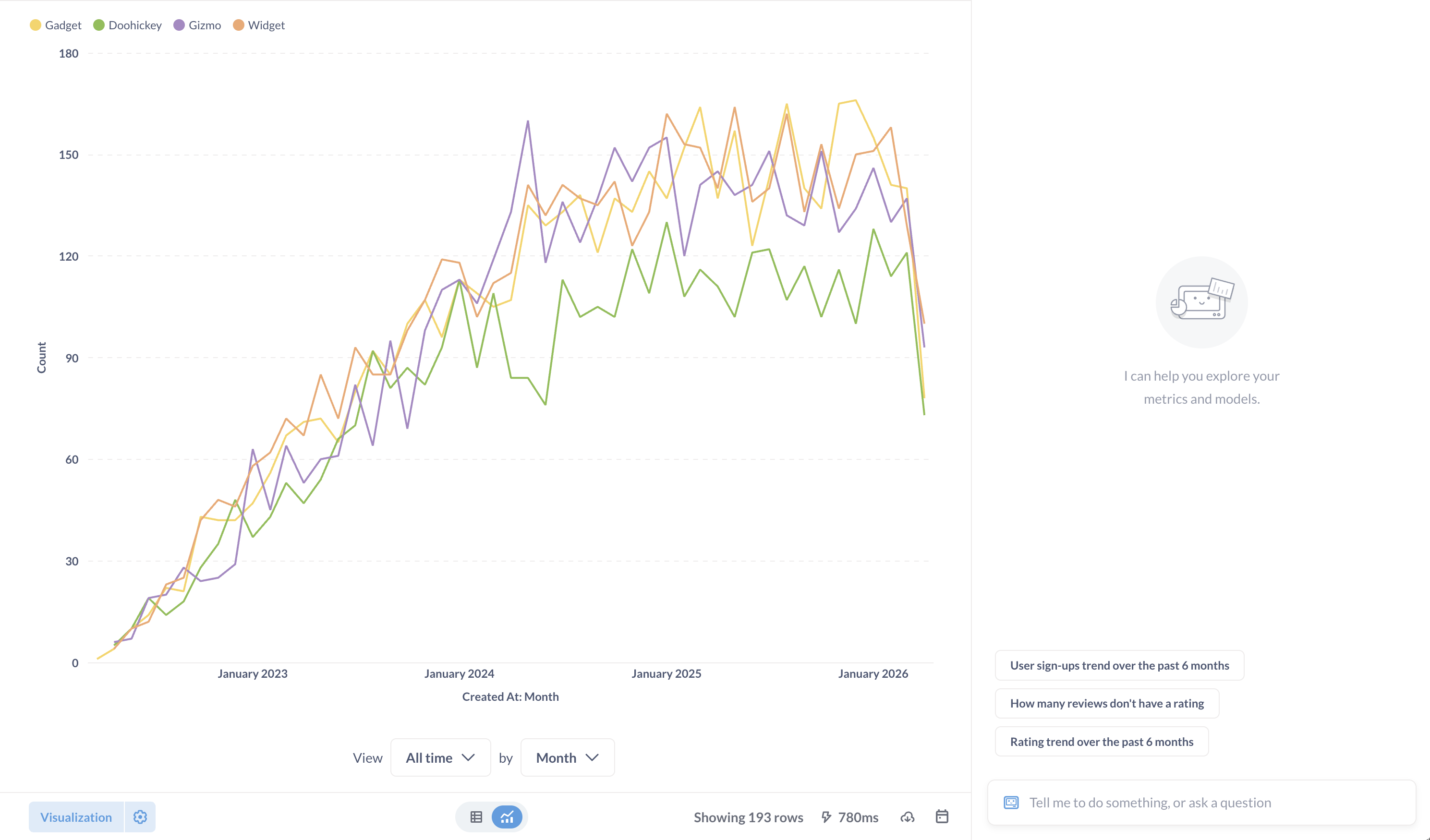
There are multiple ways to start a chat with Metabot:
- Type cmd+e on Mac, ctrl+e on Windows, to open up the chat sidebar.
- Click the Metabot icon in top right.
You can chat with Metabot (though predictably, it’s only interested in helping you answer questions about your data).
Metabot will keep the context of the current question with each new prompt. Only the current conversation history is saved (you can scroll up to see it). If you start a new chat, Metabase will discard the previous conversation, so be mindful when resetting the conversation.
Some tips:
- Give Metabot as much context as you can. If you know the table or fields you want to query, tell Metabot.
- Whenever you want Metabot to do something completely different, you should reset the conversation, as Metabot might find that irrelevant historical context to be confusing.
- Once Metabot creates a question for you, you can follow up with more questions or take over yourself. You can drill through the chart or step into the editor to tweak the query (both in the query builder and the SQL editor).
- Metabot works best with English prompts. While it might understand other languages, you’ll get the most reliable results by asking your questions in English.
- Define domain-specific terms in the glossary to help Metabot understand your organization’s terminology.
Metabot response menu
Hover over Metabot’s response to:
- Copy the response.
- Give thumbs-up/thumbs-down feedback on responses. If you upvote a response, you can optionally add some feedback. If you downvote a response, you can optionally contribute a bug report to help us improve Metabot.
- Re-run the prompt with Metabot. This is useful if you’ve updated the chart or just want to have Metabot take another pass (since AI responses aren’t deterministic, Metabot may give a different response on another run).
Analyze charts with Metabot
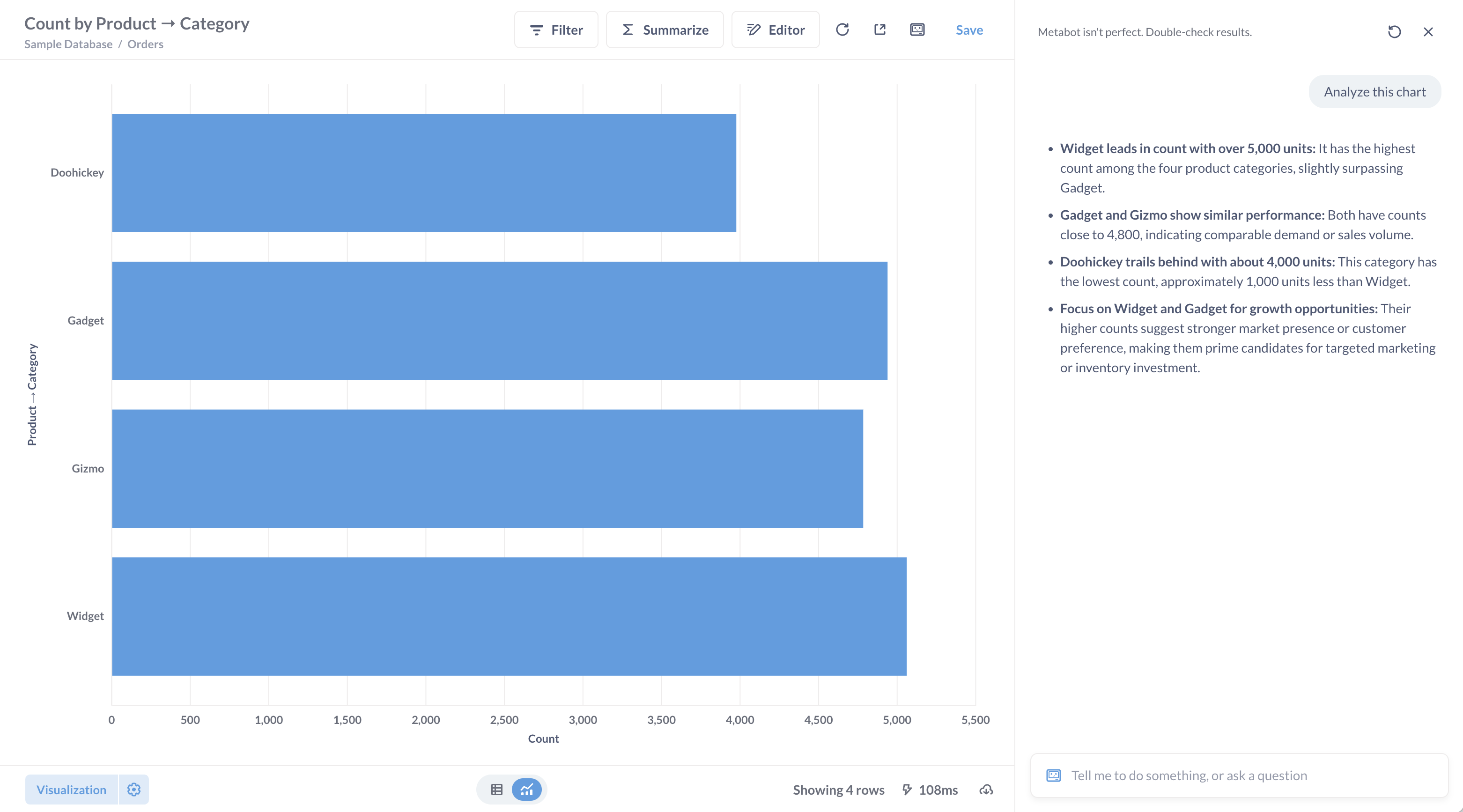
When viewing a question, you can click the Metabot icon in the upper right to analyze a visualization. You can also open the command palette to tell Metabot to analyze the chart.
When viewing a table of results, Metabase won’t display the Metabot button, but you can open the chat to ask Metabot to analyze the table, and it will produce an X-ray of the results.
You can also ask Metabot to tell you about specific tables in your database.
How Metabot uses the query builder
When you ask Metabot to create a chart from natural language, it first looks for existing questions that might answer your request. If it finds a relevant question, it’ll point you to that instead of creating something new. Otherwise, Metabot will use the query builder to create a new chart for you.
Metabot is not magic, and it’s still learning Metabase and the query builder.
Metabot in the native editor
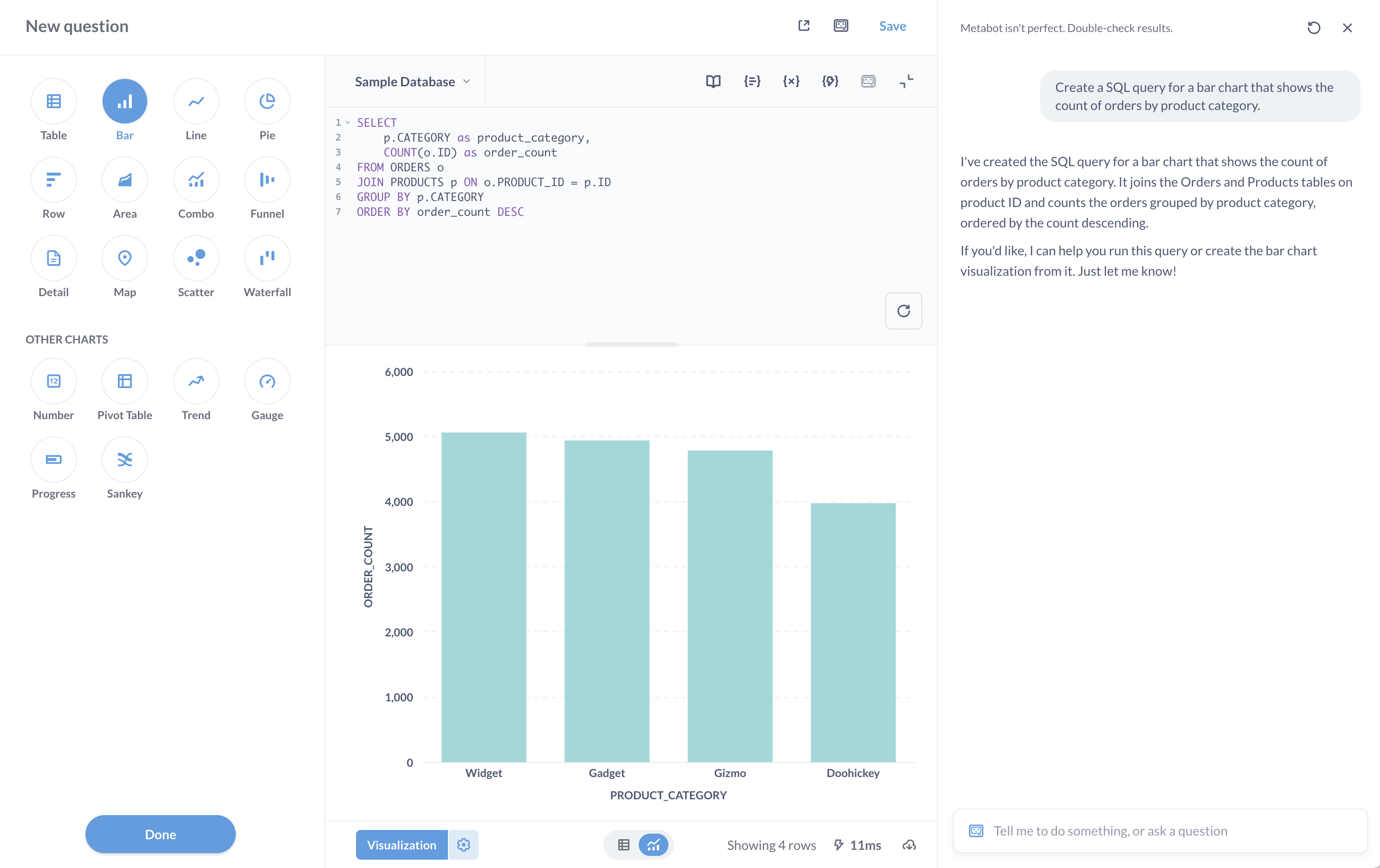
To have Metabot generate SQL for you:
- Open the SQL editor.
- Select the database you want to query.
- Type cmd+e on Mac, ctrl+e on Windows, to open up the chat sidebar.
- Ask it to “Write a SQL query that…” and type your prompt.
Metabot will generate the SQL for you, but it won’t run the query. This gives you a chance to inspect the code before running it.
If you don’t specify a specific table in a natural language question, Metabot will only check the first 100 tables in the currently selected database. If your question pertains to tables other than those first 100 tables, Metabot may hallucinate the tables it needs, and the query will fail.
Have Metabot fix SQL queries
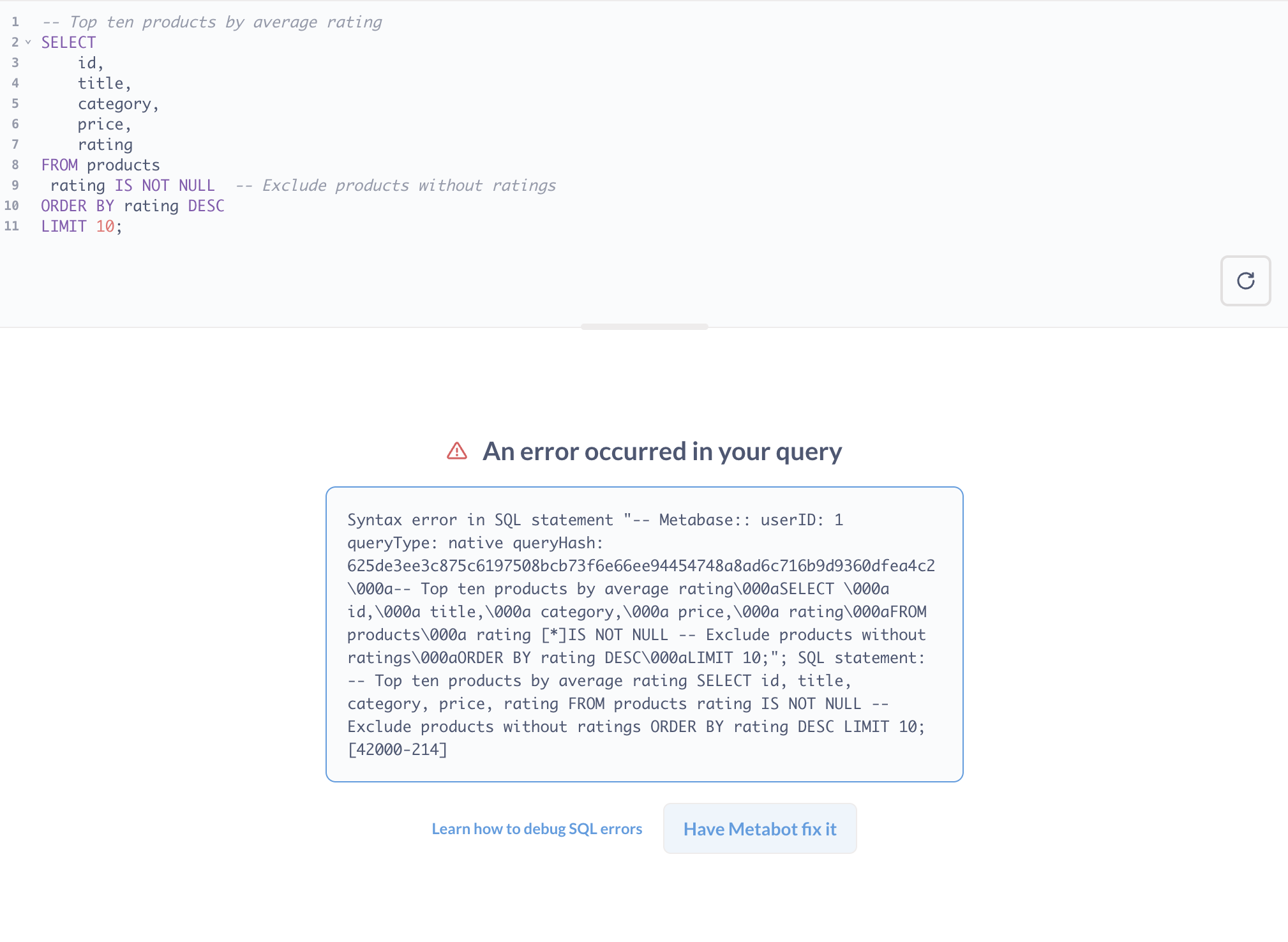
When you get an error in a SQL query, you can click the Have Metabot fix it button, and Metabot will try to correct the query. You can also ask Metabot to fix your SQL in the chat.
Inline SQL editing
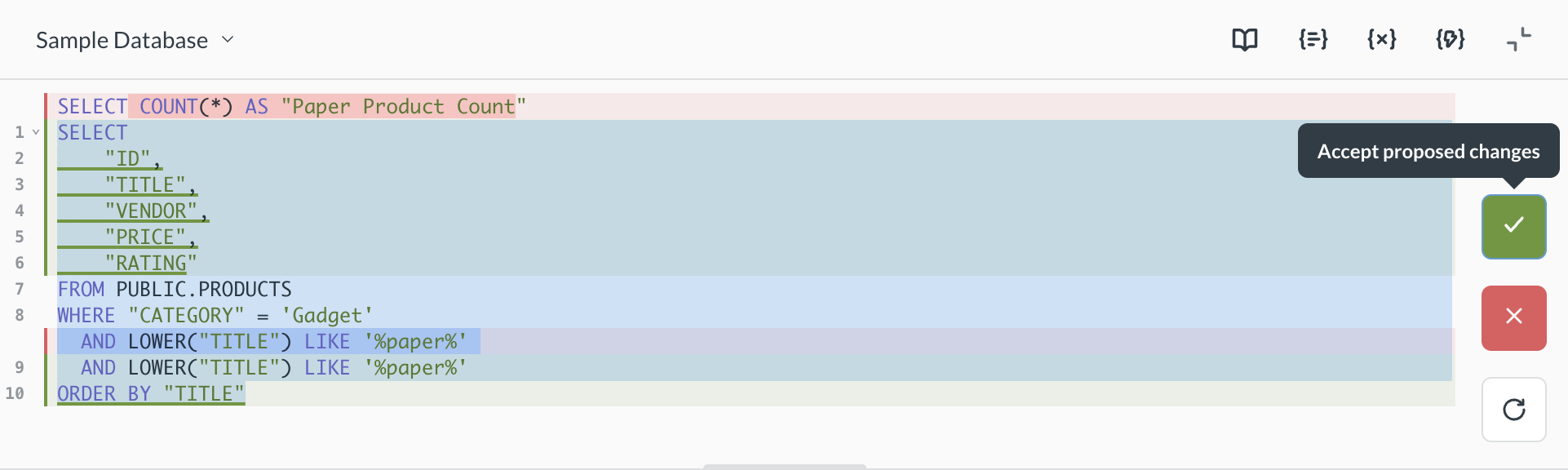
You can ask Metabot to generate or edit code in the SQL editor, without using the chat sidebar:
- Open the SQL editor.
- Press Cmd+Shift+I (Mac) or Ctrl+Shift+I (Windows).
- Enter one or more tables.
- Type a prompt describing the query you want to write.
- Click Generate to create the SQL.
- Accept or reject the change. Always review the code before running it (AI is not magic).
You can also edit existing SQL. Place your cursor in the query, press Cmd/Ctrl+Shift+I, and describe the change you want to make (like “add a filter for orders from this year”). Metabase will suggest edits that you can accept or reject.
Navigating after Metabot creates a chart
If Metabot creates a query or takes you to a new item but you want to return to the previous screen, you can navigate using your browser’s back button.
You can also save any chart that Metabot creates to a dashboard or collection.
AI exploration
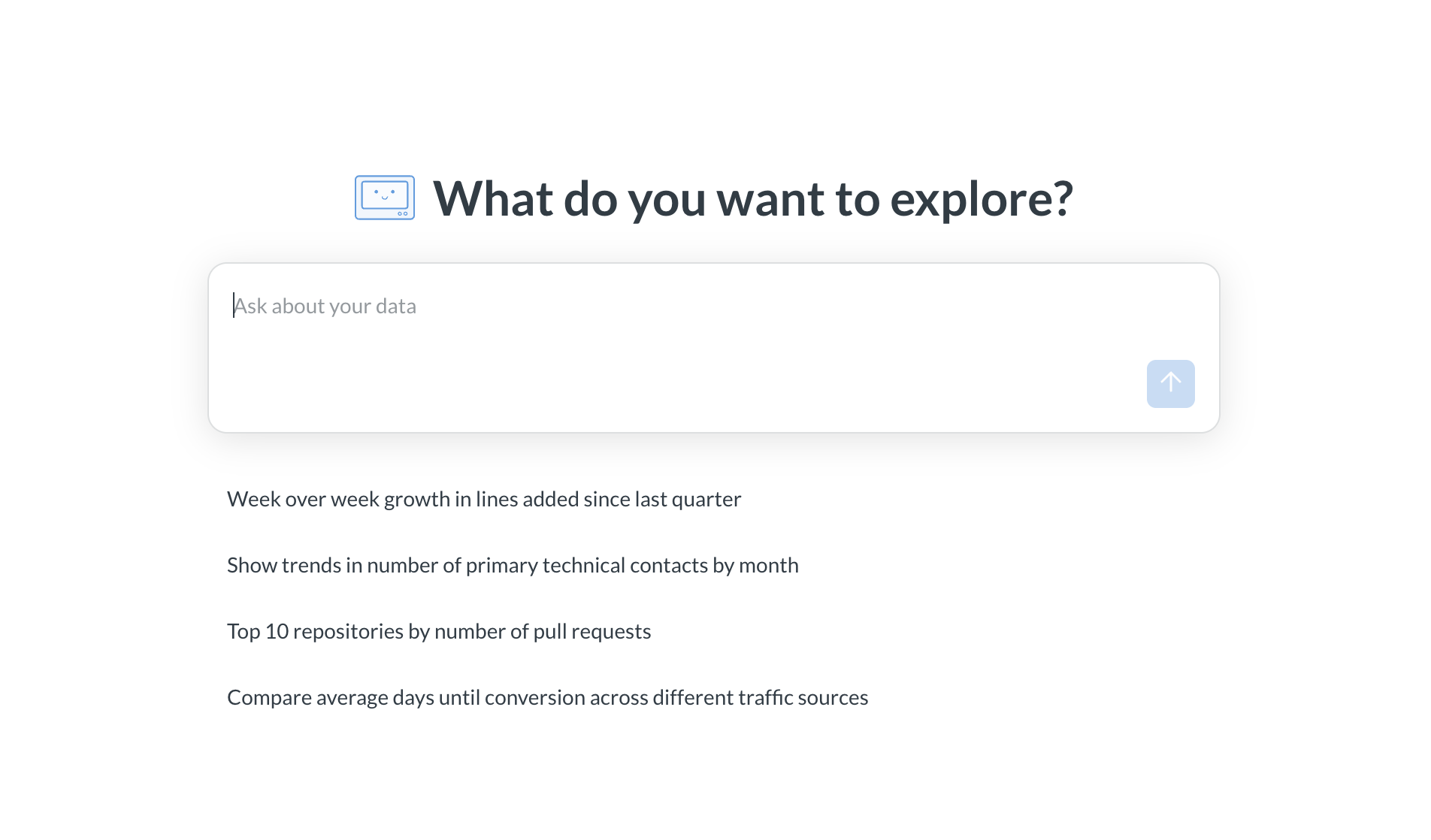
Use AI exploration to start a new conversation with Metabot when you don’t already have a chart, question, or query to work from.
Open it from + New → AI exploration, then ask a question or pick one of the suggested prompts.
When answering questions in AI exploration, Metabot searches a limited set of content instead of your entire Metabase. Admins can set a Collection for natural language querying to scope AI exploration to a specific collection and its subcollections. You can still refer to content outside that scope by explicitly @-mentioning it in your prompt. See Metabot AI settings for more details.
Current limitations
Metabot is getting smarter all the time, but there are some things it can’t do yet:
- Custom expressions. Metabot can’t use custom expressions in query builder questions.
- Multi-level aggregation. Metabot is limited to a single level of aggregation and grouping.
- SQL variables. Metabot can’t generate SQL queries that include SQL parameters (like filters or field filters).
- Goal lines. Metabot can’t add goal lines to charts.
- Chart formatting. Metabot can’t change visualization settings like colors, axis labels, or number formatting.
- Managing alerts. Metabot in Slack can create alerts and dashboard subscriptions, but can’t modify or delete existing ones.
- Search. Metabot can only search for tables, metrics, questions, models, and dashboards. It can’t discover segments, measures, documents, collections, actions, or indexed entities on its own — but it can use segments and measures in ad-hoc queries (for example, filtering by a segment).
Metabot in Slack
Slack Metabot directly or @mention it in a channel to ask questions about your data. See Metabot in Slack.
Giving feedback on Metabot responses
When you hover over Metabot’s responses, you’ll see options to give feedback.
Thumbs up are just as helpful as thumbs down. If you give a thumbs down, you can optionally provide more details about the issue and set an issue type:
- UI bug
- Took incorrect actions
- Overall refusal
- Did not follow request
- Not factually correct
- Incomplete response
- Other
When you submit feedback, the form you send may contain sensitive data from your conversation.
Read docs for other versions of Metabase.